Once the nomination(s) for a Defect have been completed, the Defect will need to be closed.
This will ensure the correct KPI's are recorded for resolving the Defect.
Team Members (Non-Admin) can close Defects but cannot re-open them.
Closing a Defect
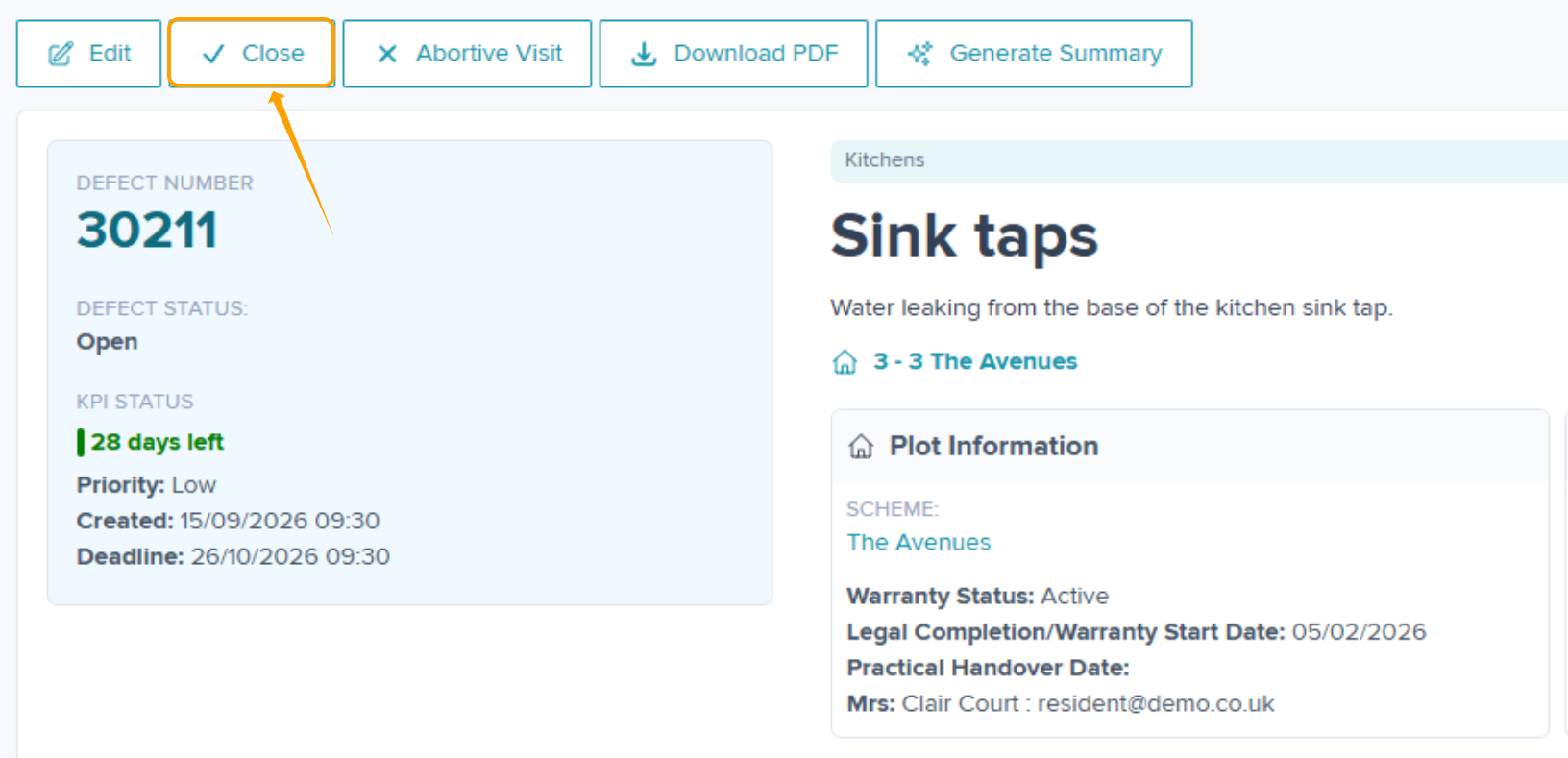
Click Close within the Defect. At this point, there is an option to add a closing comment if required.
Once completed, click Submit.
If there is an accepted Nomination you cannot close the Defect until the Nomination is completed.
If the Defect is on hold you cannot close until the Defect is released from hold.
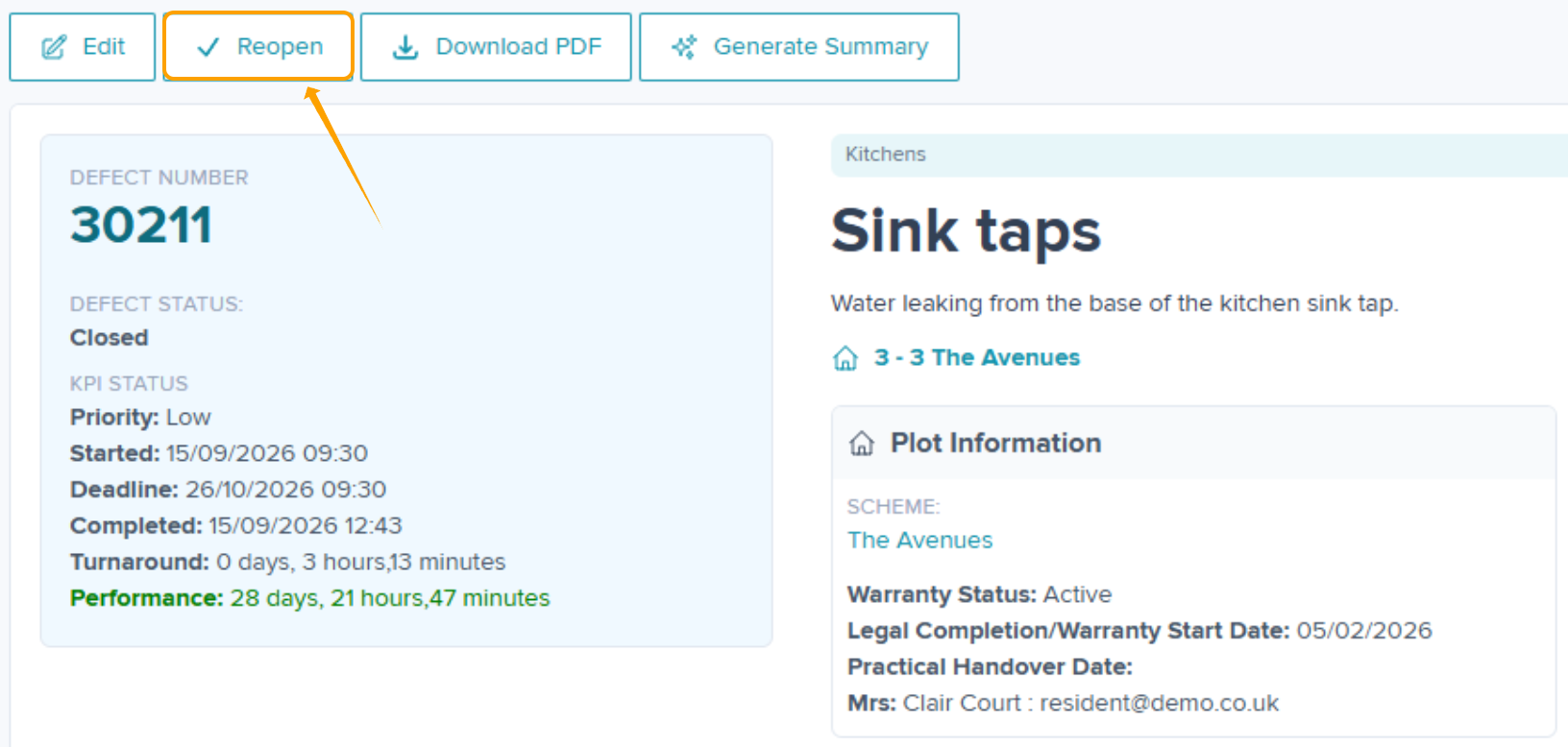
If you close a Defect in error, an Admin can re-open this by clicking 'reopen' as shown below.
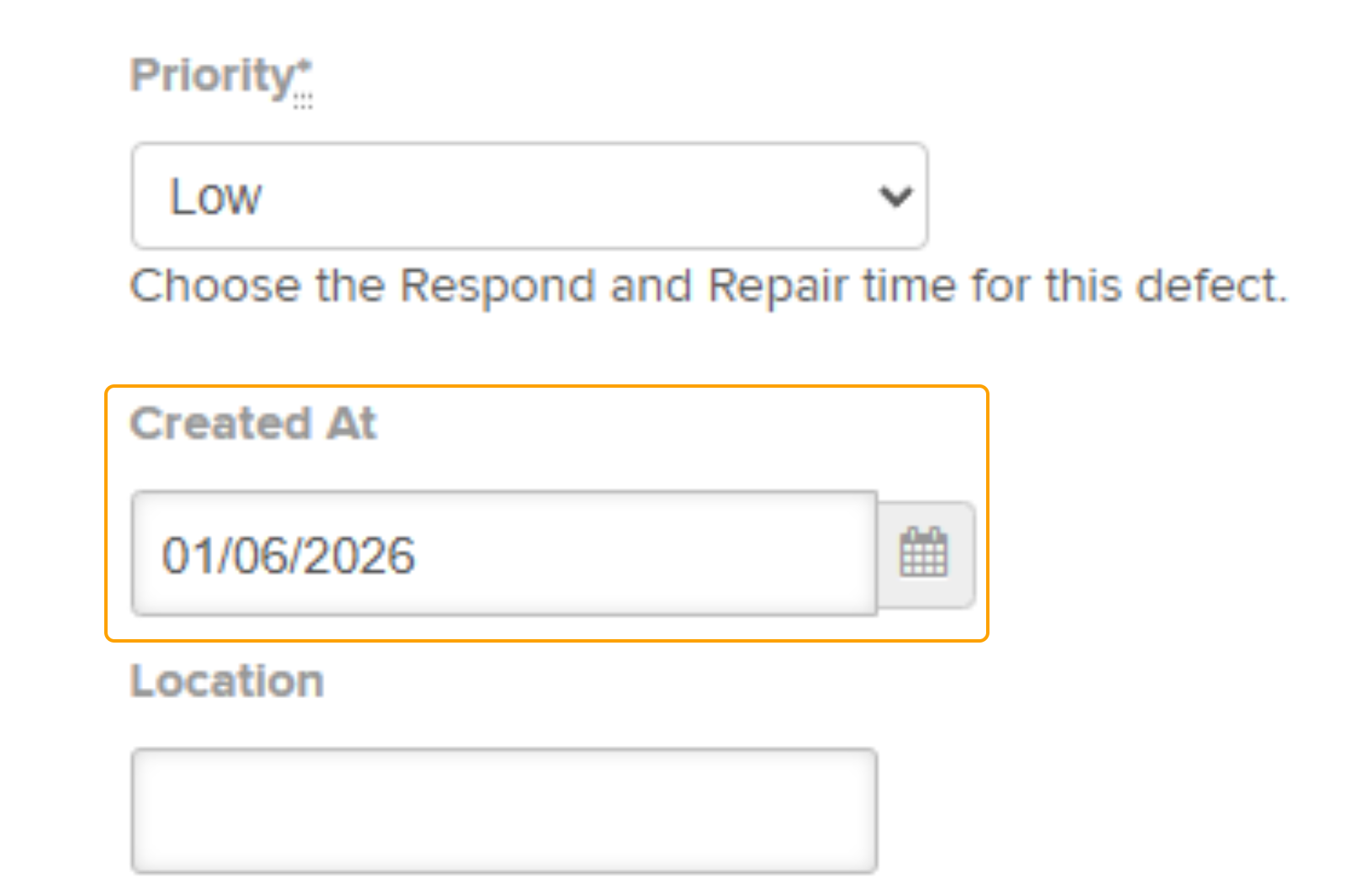
Amending the 'Created Date'
To change the 'Created At' date for a Defect, click Edit in Defect View and select a new date as required.
Once updated, click Submit.
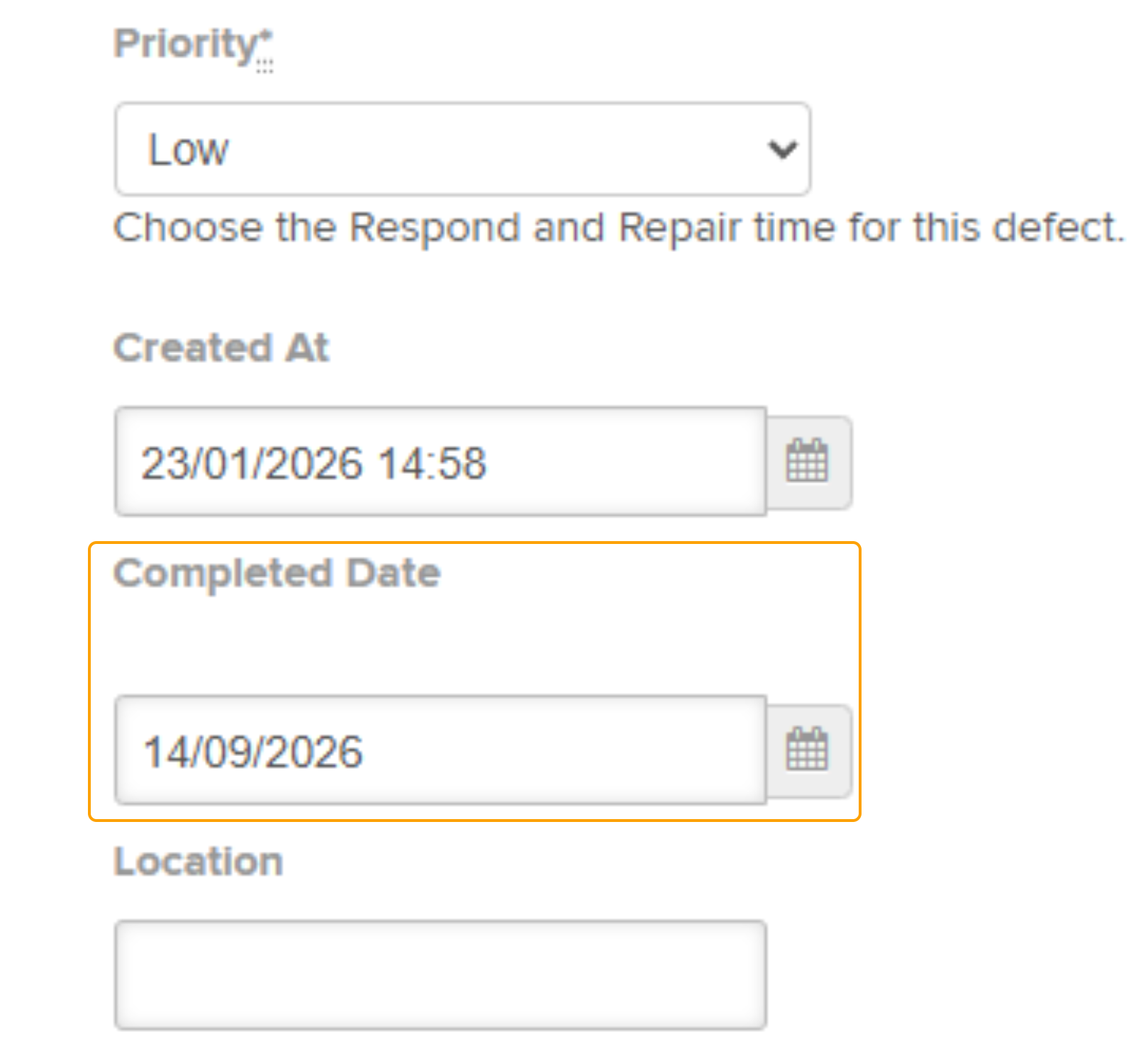
Amending the 'Completed Date'
Once closed, to change the 'Completed Date' for a Defect, click Edit in Defect View and select a new date as required. Once updated, click Submit.
Bulk Closures
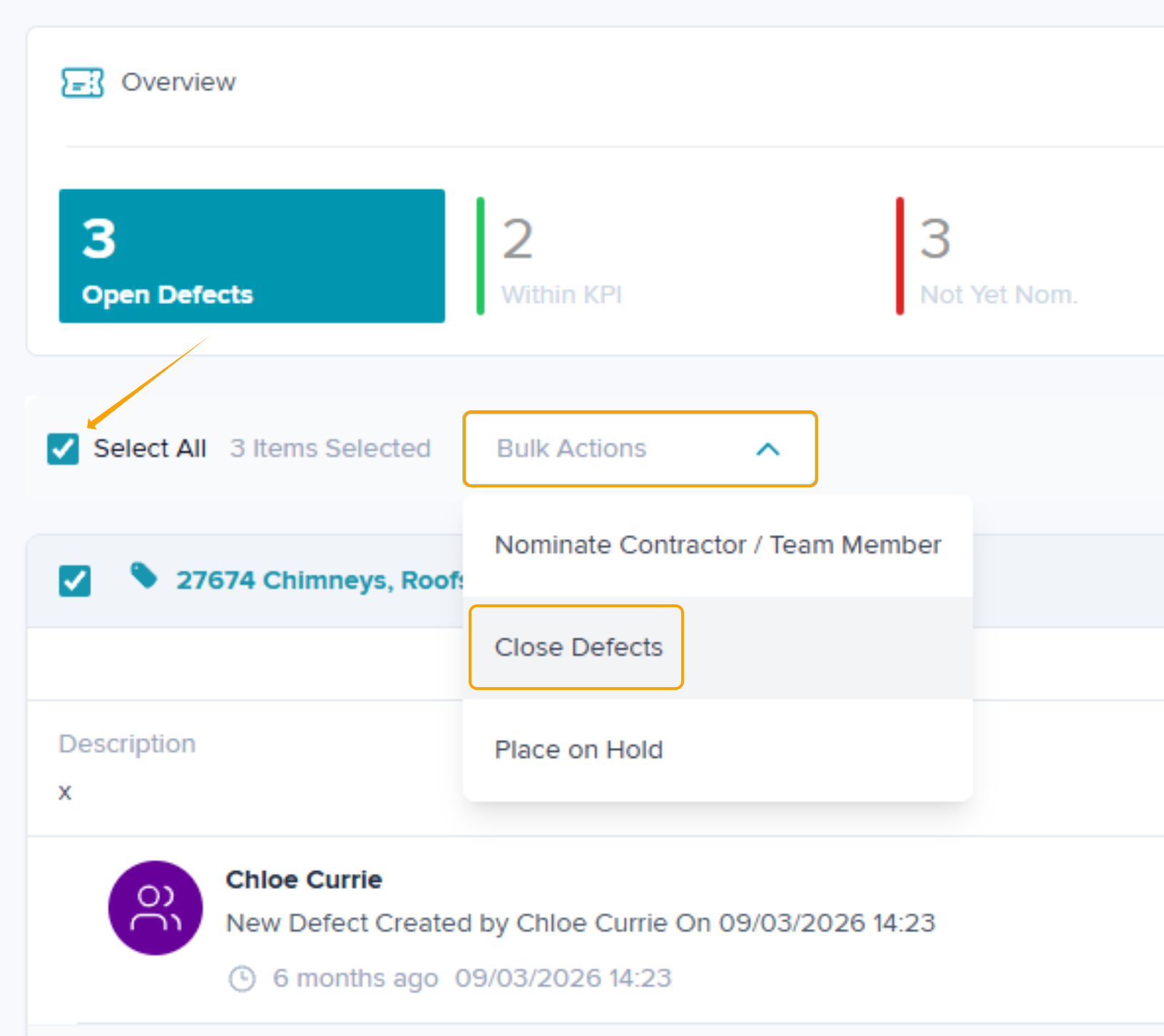
If you have multiple Defects to close, you can close in bulk from the Defects page and Plot view. First select the Defects you wish to close, or Select All, then click the 'Bulk Actions' drop-down & select 'Close Defects'
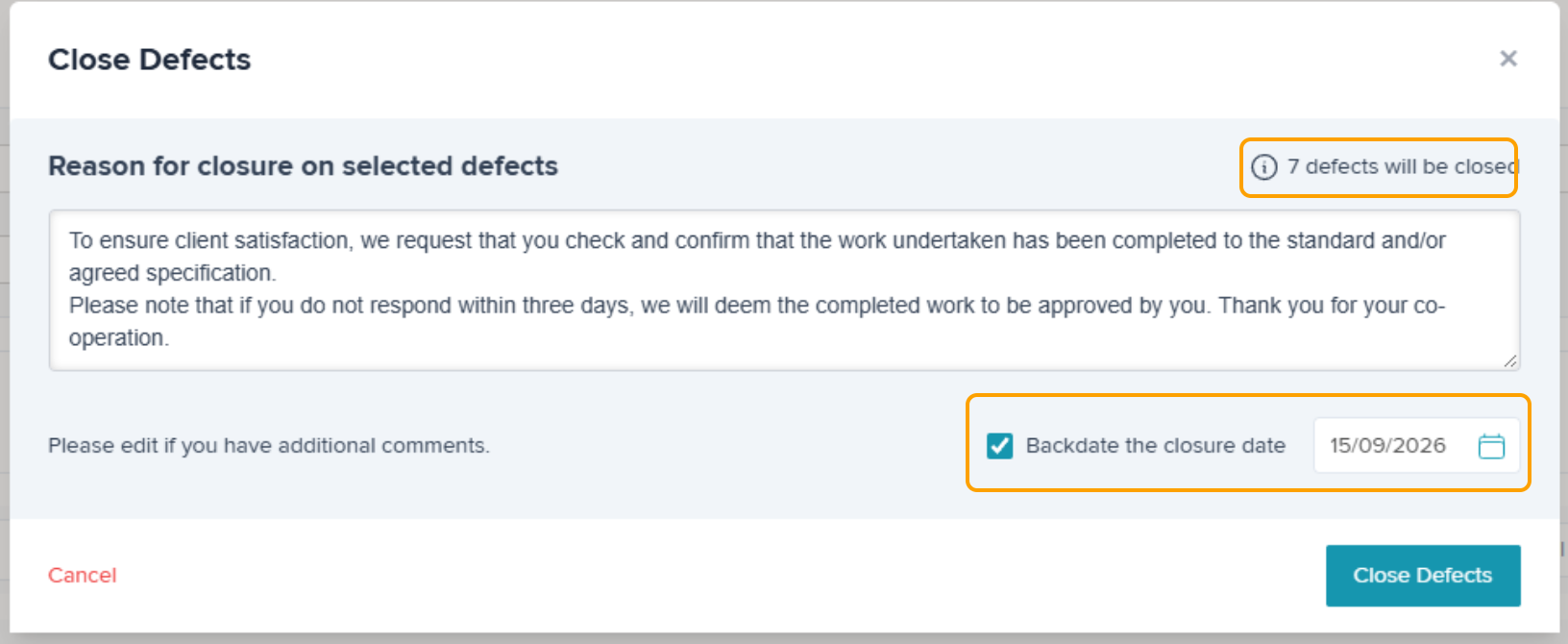
The closure box will then appear detailing how many Defects you are closing, you can amend the closing comment at this stage also. Once complete, click 'Close Defects'
The closure dates can be amended if needed by clicking 'Backdate the closure date' before clicking 'Close Defects'.
Was this article helpful?
That’s Great!
Thank you for your feedback
Sorry! We couldn't be helpful
Thank you for your feedback
Feedback sent
We appreciate your effort and will try to fix the article