The Premium Calendar is an advanced feature. If you would like more information please speak with your Account Manager.
The clixifix® Premium Calendar feature helps you manage your teams time more effectively by allowing you to create events that are separate from Defect related appointments. You can also create custom labels to categorise events, making it easier to differentiate and filter your calendar view.
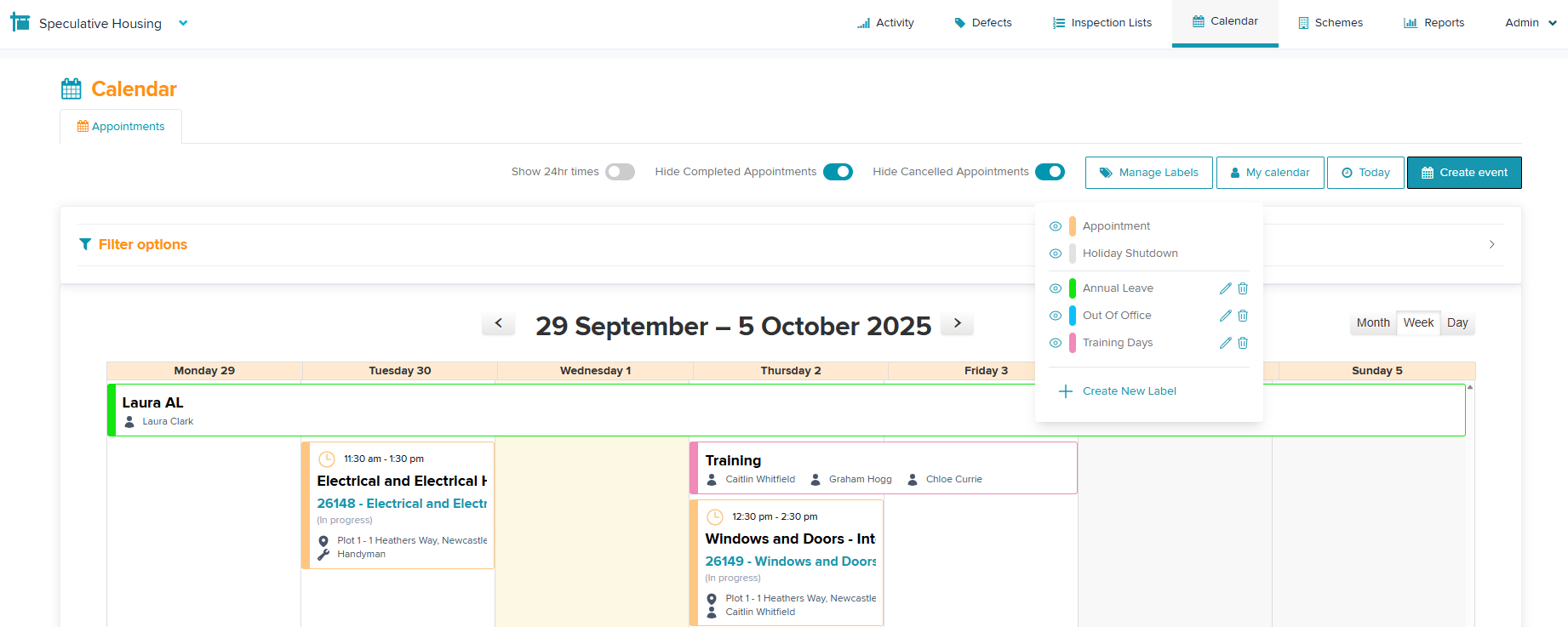
Creating a Calendar Label
Step 1: Within Calendar view select Manage Labels.
Step 2: Select + Create New Label.
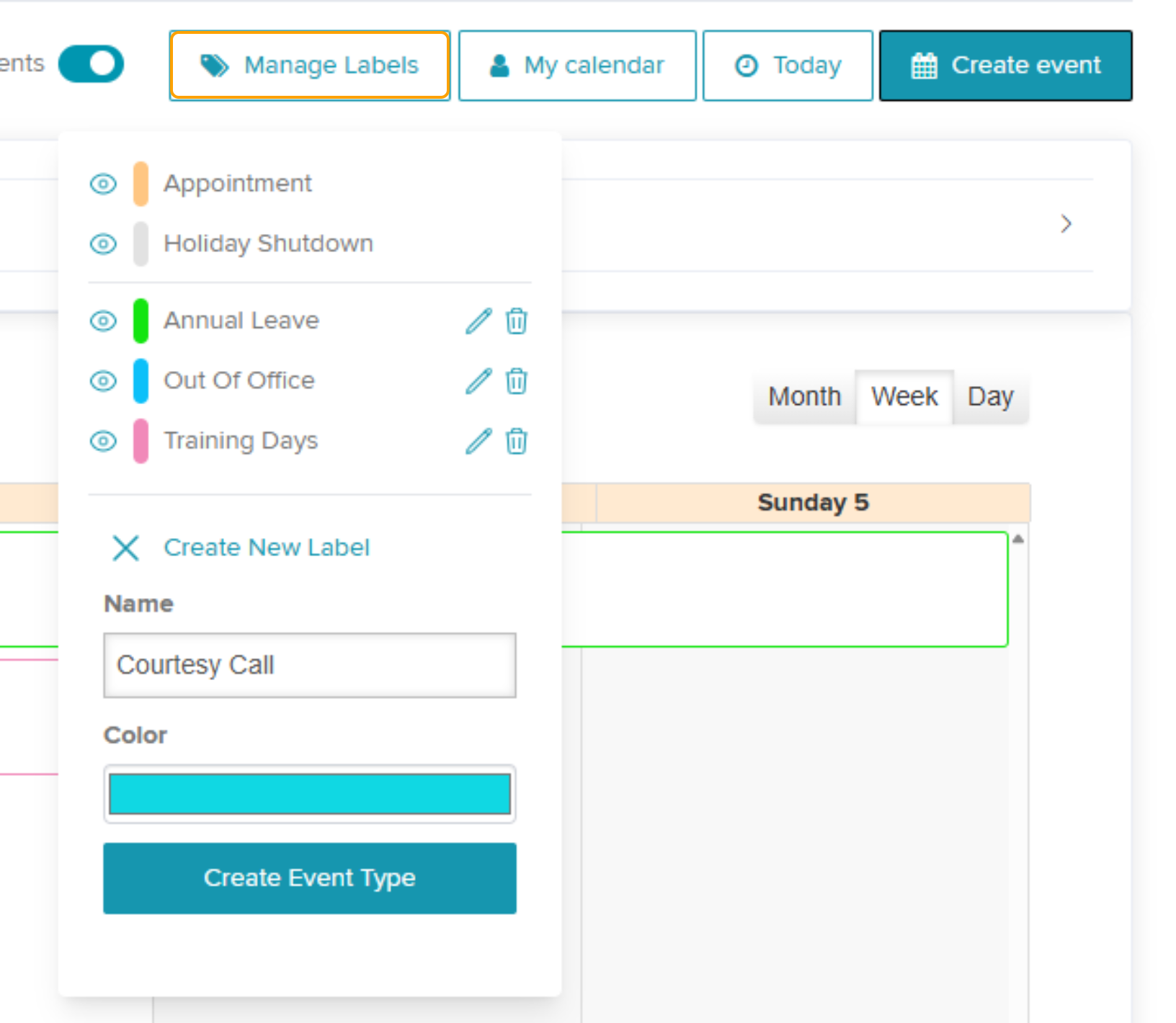
Step 3: Enter the event label name and choose the colour.
Step 4: Select Create Event Type.
Creating an Event
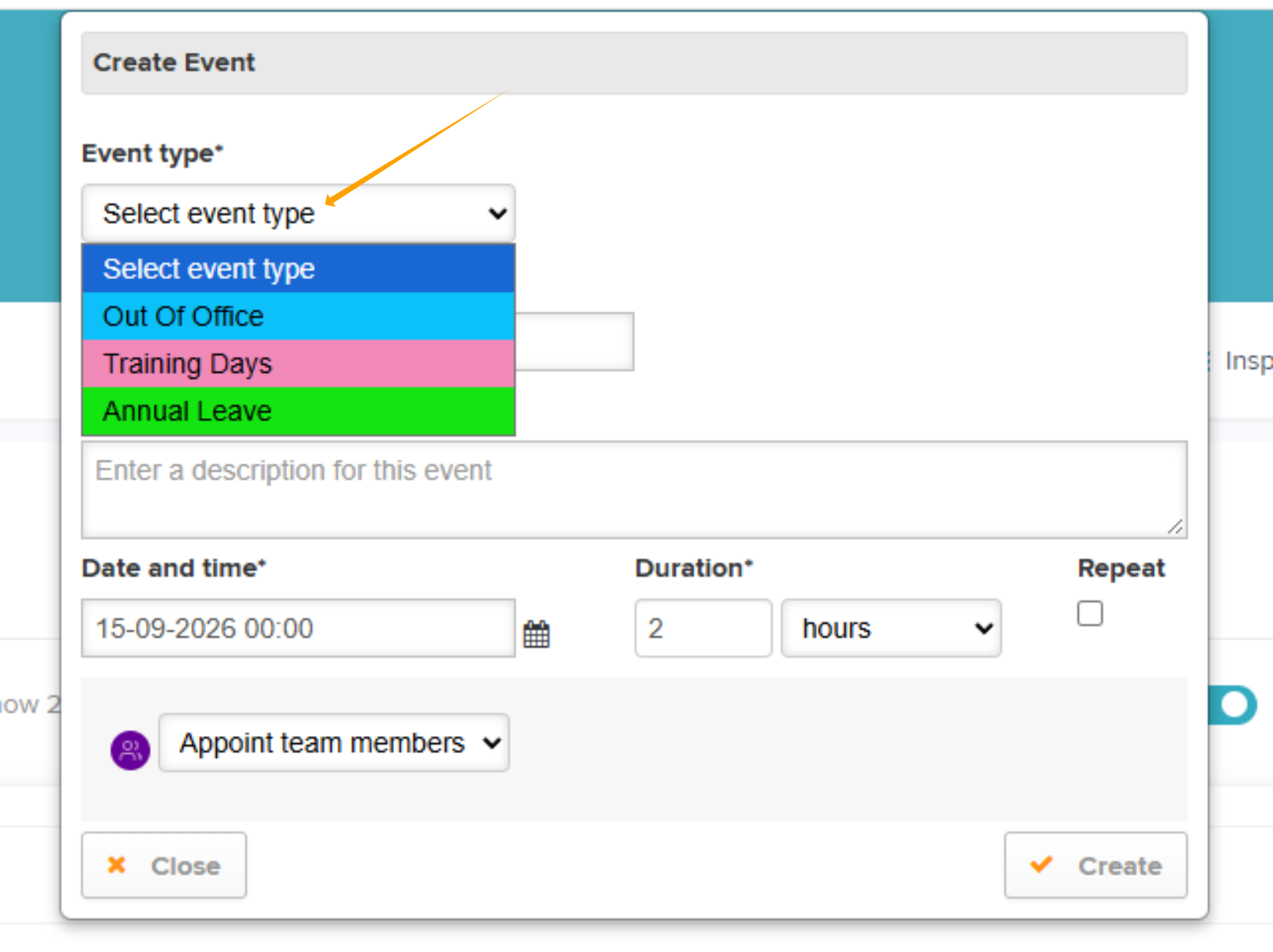
Step 1: Select Create event

Step 2: Select the event type from the drop down.
Step 3: Enter the event title and description.
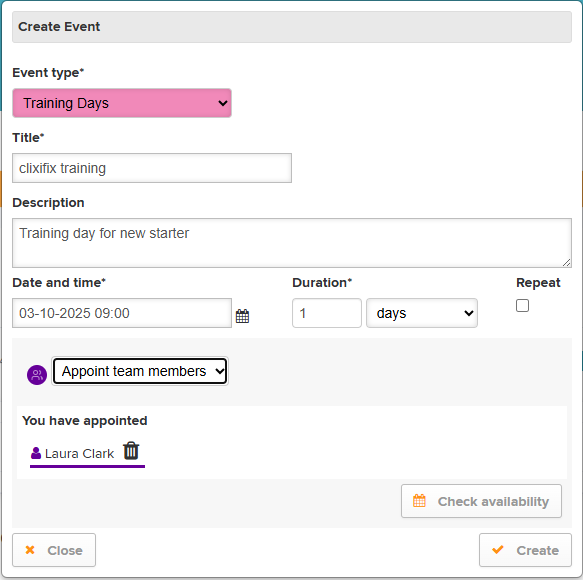
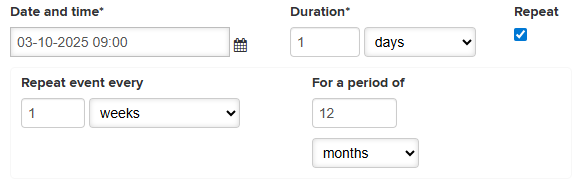
Step 4: Enter your start date & time and duration. Use the drop down on duration to choose between minutes, hours, days, weeks and months.
If this is a repeat event you can select how often you would like the event to repeat and for how long.
For example, once a week for 12 months.
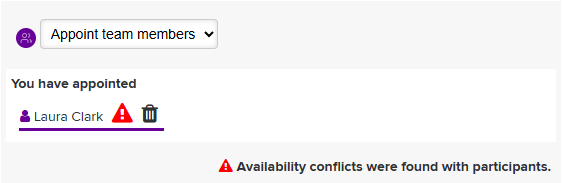
Step 5: Choose the team member(s) allocated to the event.
You can use the 'Check Availability' button to identify any conflicting appointments or events for the user in the clixifix® calendar. By selecting the warning icon next to the appointee, you can view the details of the conflict.
Step 6: Select Create.
Updating Event
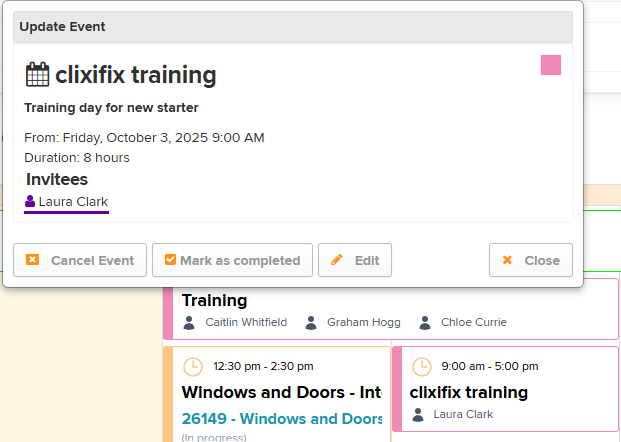
You can cancel, complete and edit an event by clicking the event card which will open a pop-up box.
Was this article helpful?
That’s Great!
Thank you for your feedback
Sorry! We couldn't be helpful
Thank you for your feedback
Feedback sent
We appreciate your effort and will try to fix the article