The Costs feature is an advanced feature. If you would like information please speak with your Account Manager.
The Costs feature enables you to record re-charges/expenses on Reactive Defects. This can help you monitor & reclaim Costs on Defects.
Logging a Cost
Step 1: Within the Defect select the Costs tab.
Step 2: Select +Add Cost.
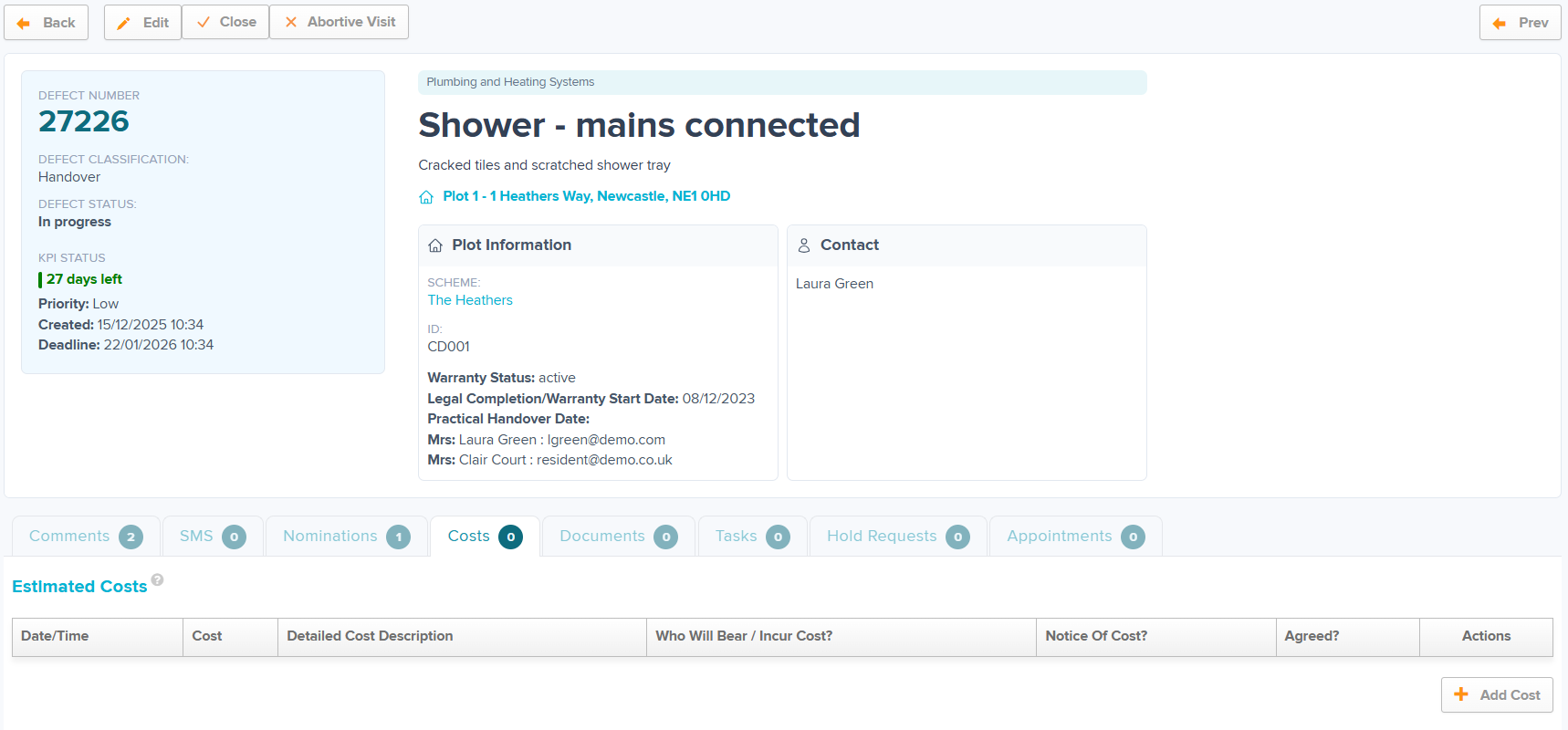
Step 3: Select who will incur the cost.
(Sub-Contractors will only show here if they are Nominated)
Step 4: Select your Cost Centre. Here you can select if this is a re-charge or expense to the business.
(Cost Centres can be added within Admin > Cost Centre)
Step 5: Select your Cost Category. Here you can select the reason for the cost.
(Cost Categories can be added within Admin > Cost Category)
Step 6: Enter the cost amount. The standard format is a flat rate but can be changed this to hourly rate if required. Please contact Support for help with this.
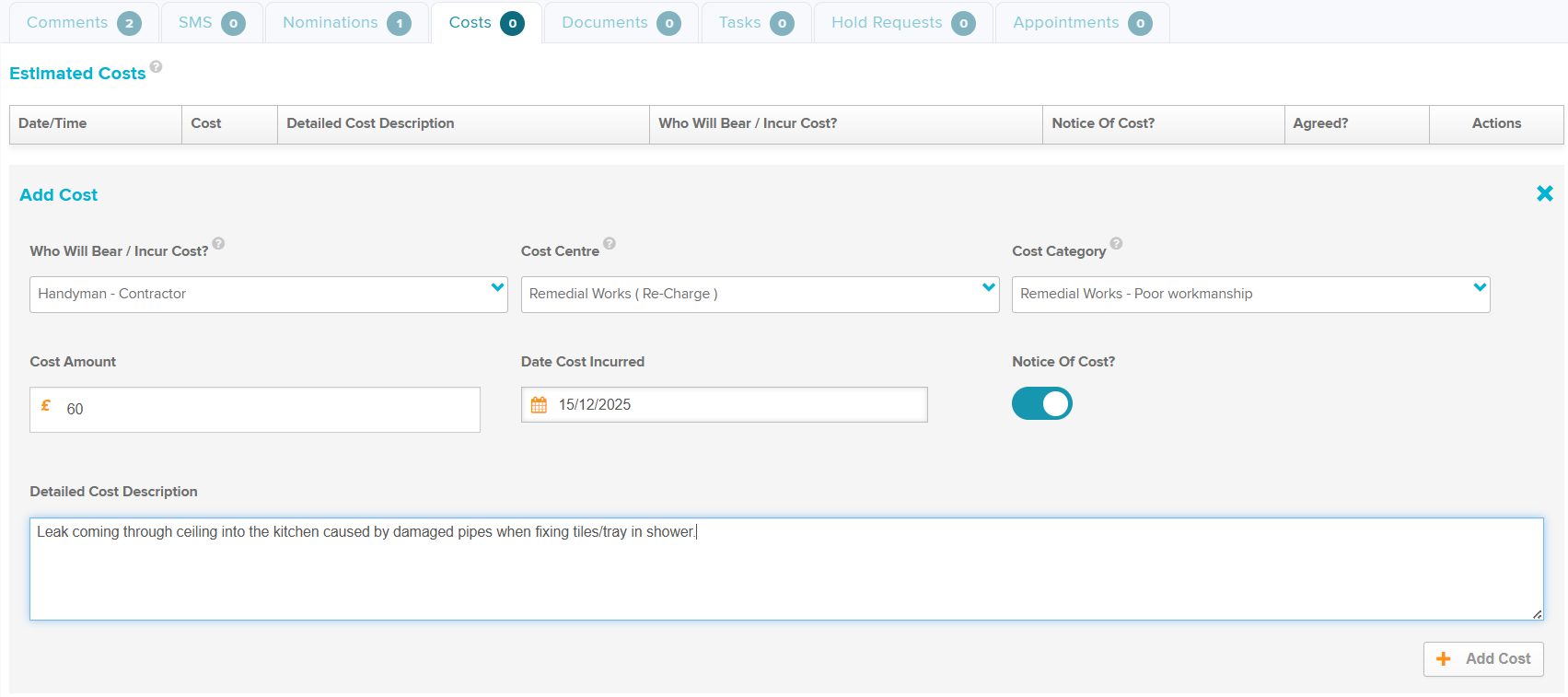
Step 7: Select the date the cost was incurred. This is automatically set as todays date but can be backdated or set in the future.
Step 8: Enter the cost description.
Step 9: Select +Add Cost.
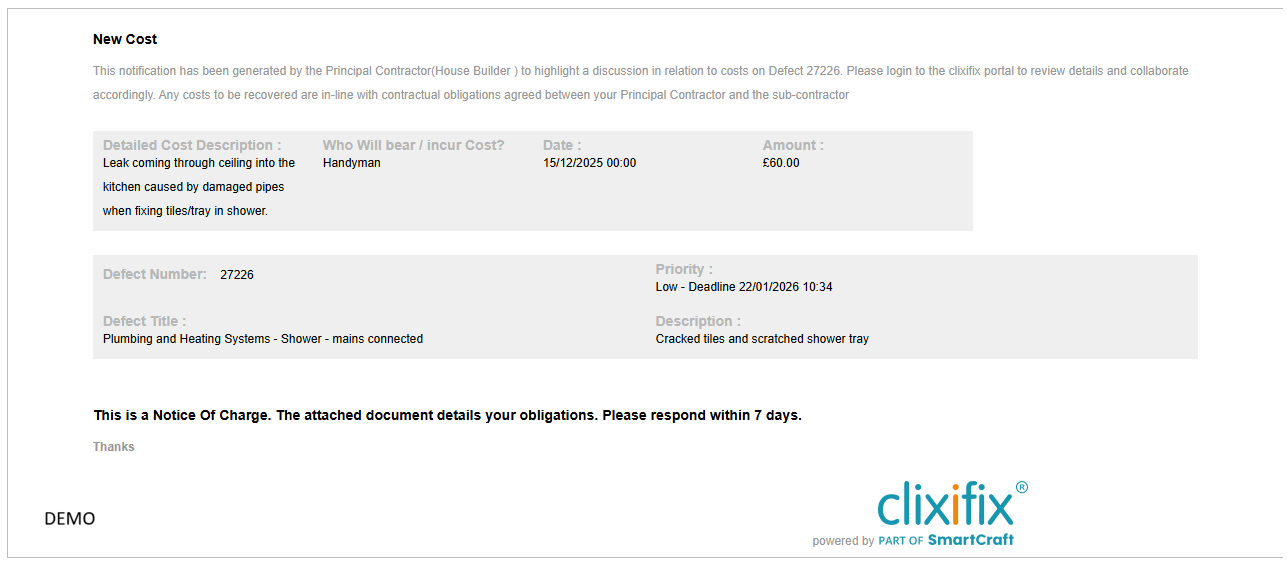
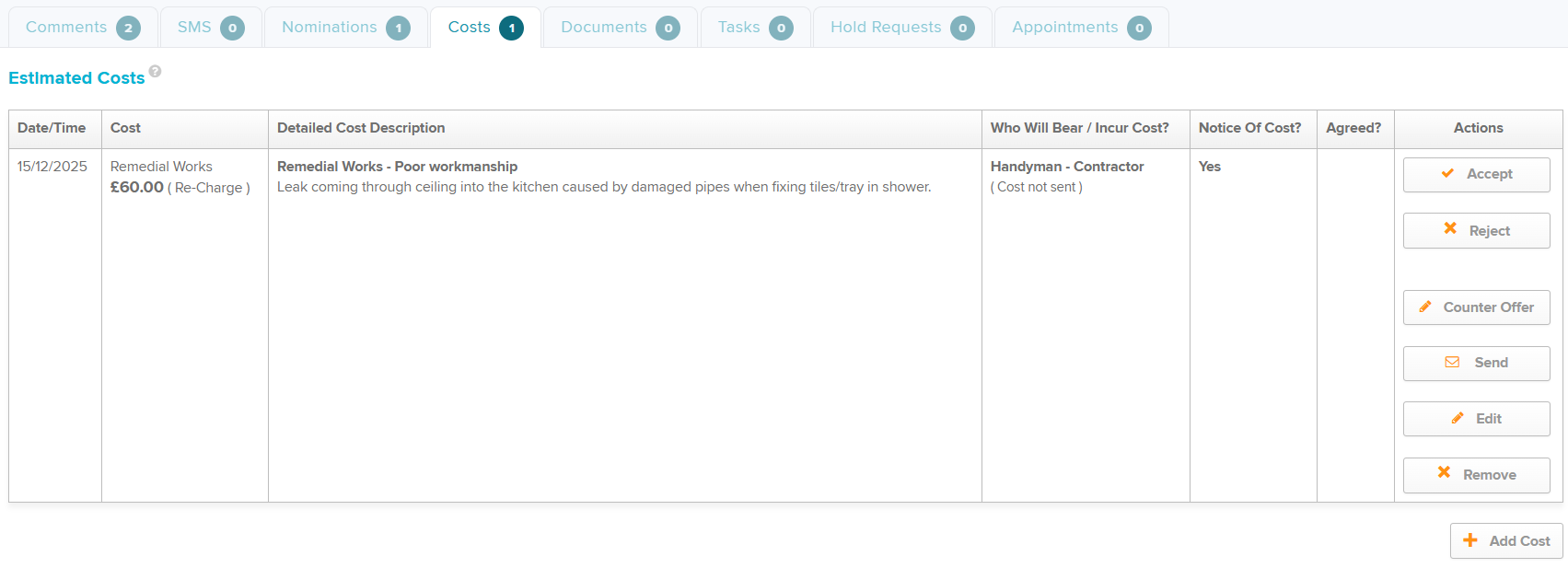
Once raised, you have the option to send a notification to the recipient the Cost by selecting Send.
There are multiple options within the 'Actions' column on the Cost. You can accept or reject on behalf of the person incurring the cost or if this is a subcontractor they can accept or reject within their free account.
You also have the option to add a Counter Offer, Edit and Remove if required.
Was this article helpful?
That’s Great!
Thank you for your feedback
Sorry! We couldn't be helpful
Thank you for your feedback
Feedback sent
We appreciate your effort and will try to fix the article