Reset my password using current password
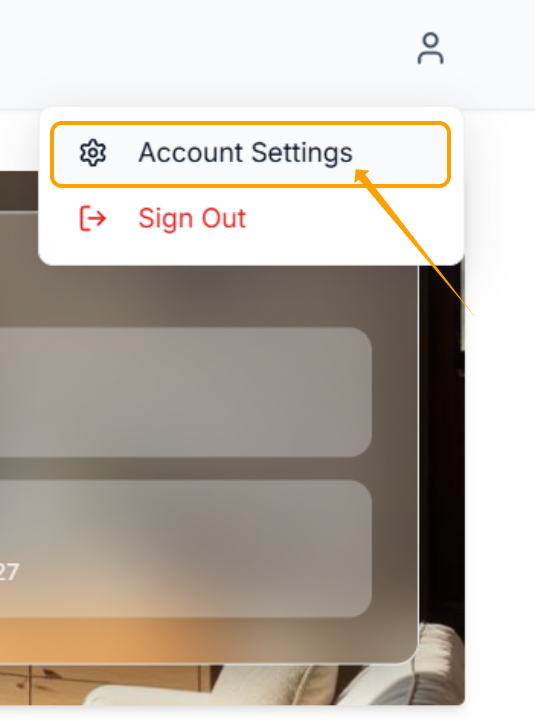
Step 1: Login to the Resident Portal & click the person icon in the top right corner (desktop view) or the 3 lines/burger icon in the top right hand corner (mobile device).
Step 2: Click Account Settings
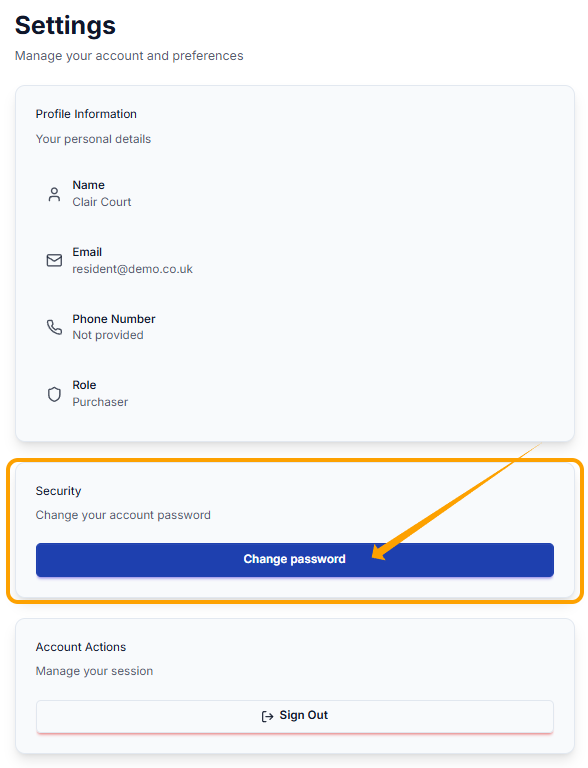
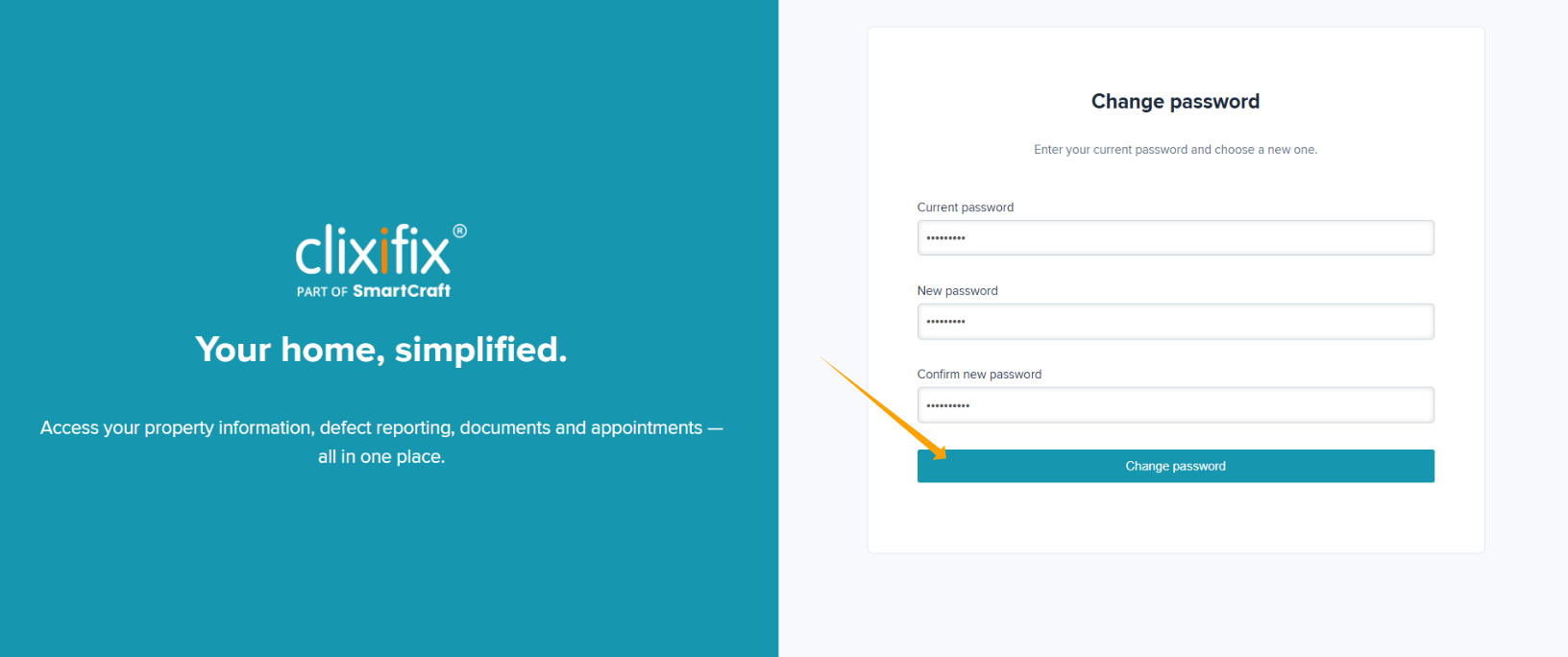
Step 3: Confirm your existing password, enter a new password, re-enter to confirm password, then click Change password.
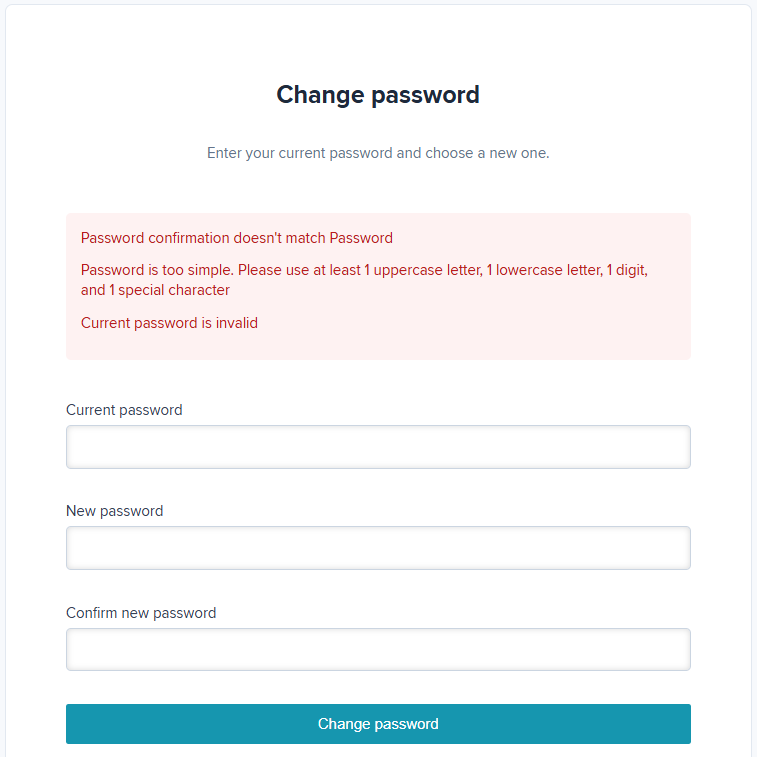
Failed Password Reset
You will receive this message below if your chosen password does not meet password criteria.
Passwords must be;
- Minimum of 8 characters
- Minimum of one upper case letter
- Minimum of one lower case letter
- Minimum of one numeric character
- Minimum of one special character
Reset my password without current password
If you cannot remember your password or if the password you use is not being accepted, you can complete a Password Reset without being logged in.
This is for confirmed users only and will not work if you have not yet set a password.
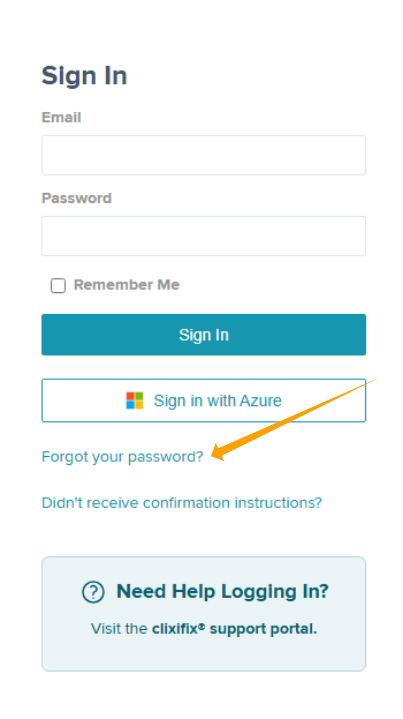
Step 1: Click Forgot your password? on the clixifix® Login Page as shown in the screenshot below.
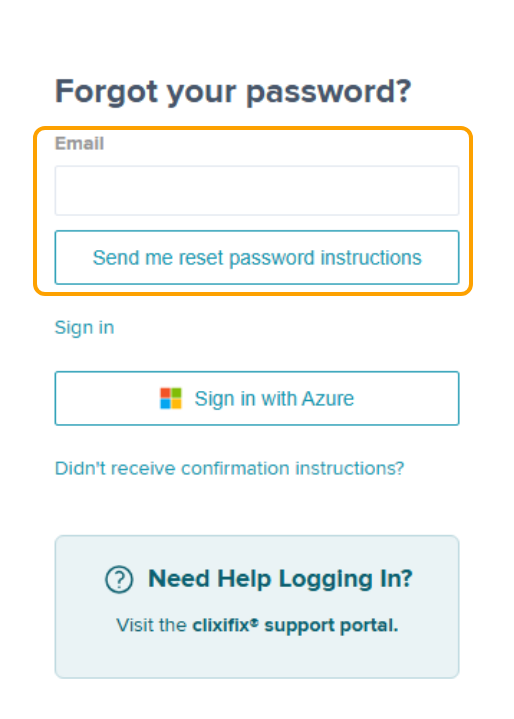
Step 2: Enter your email address & click Send me reset password instructions
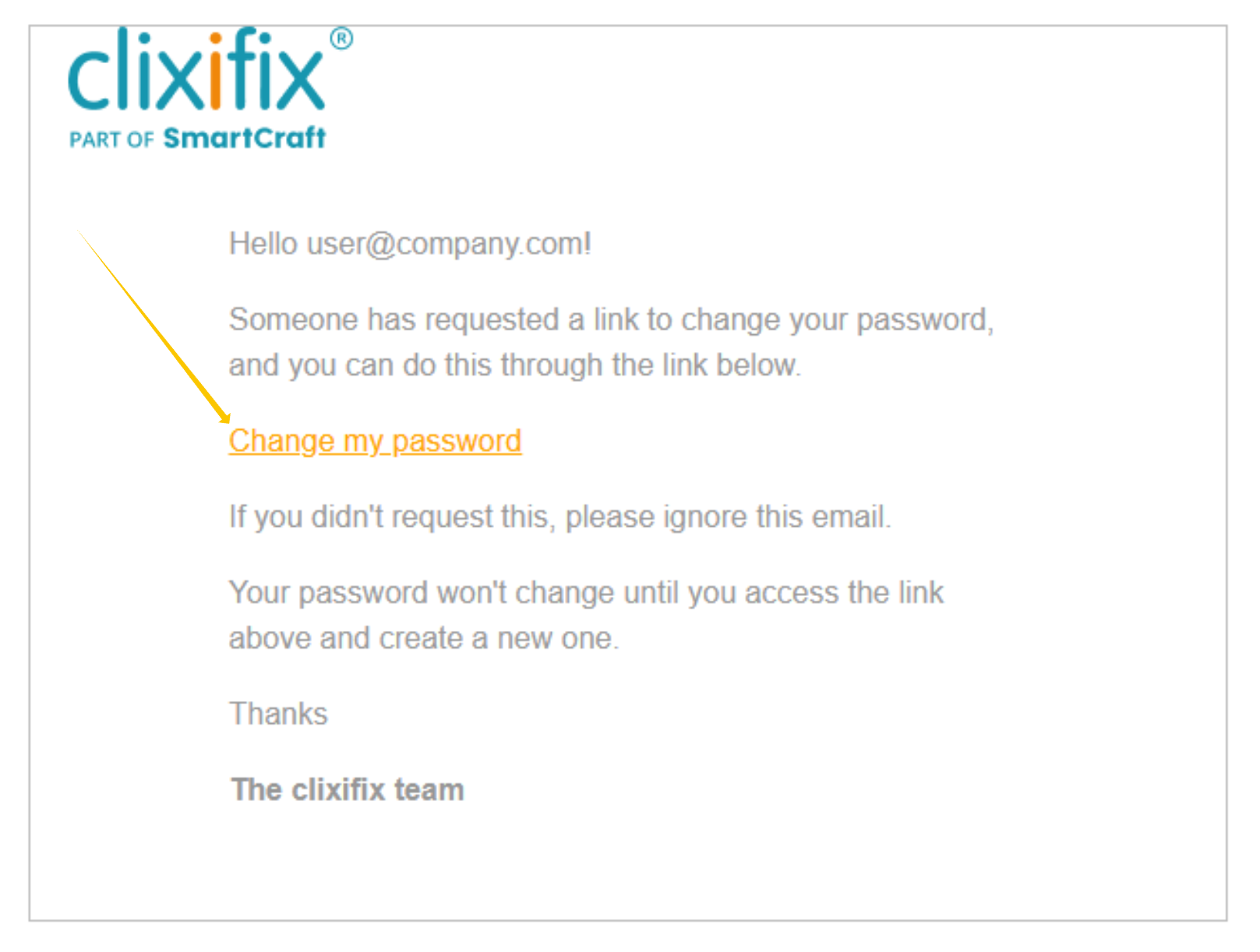
Step 3: You will then receive an email. Click the link in the email to Change my password
Passwords must be;
- Minimum of 8 characters
- Minimum of one upper case letter
- Minimum of one lower case letter
- Minimum of one numeric character
- Minimum of one special character
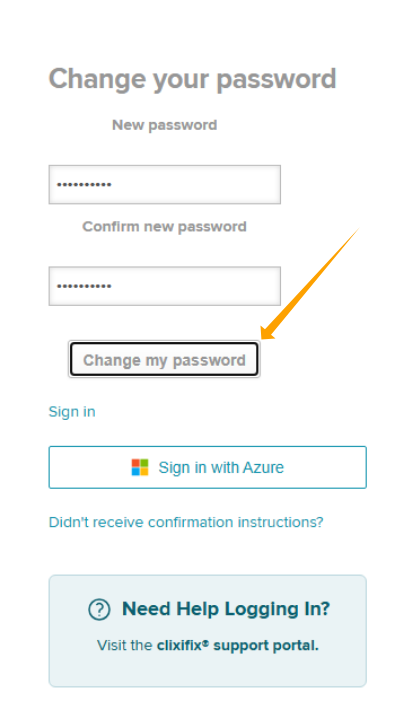
Step 4: Enter your new password in both boxes and click Change my password
Step 5 : Proceed to Login
Was this article helpful?
That’s Great!
Thank you for your feedback
Sorry! We couldn't be helpful
Thank you for your feedback
Feedback sent
We appreciate your effort and will try to fix the article